
WhatsApp is one of the best encrypted messaging apps in the world, and with features like end-to-end encryption, video notes, voice messages and more, it’s easy to see why it reportedly has around three billion monthly active users.
Despite its popularity, though, you might not be aware of some of the little-known features buried in WhatsApp’s settings. Take a few minutes to investigate and you could level up your WhatsApp experience with just a few taps.
Here, we’ll show you seven of the best hidden WhatsApp settings that can transform the app for the better. Enable them and you’ll never use WhatsApp in the same way again.
Chat from your computer
Sometimes, using WhatsApp on your phone isn’t the most convenient option. Whether you want to text from a computer or send messages from a different phone, there’s a way to do that in WhatsApp. First, open the app on your second device. If you’ve not yet linked it to your mobile account, you should see a QR code.
Now open WhatsApp on your mobile device and tap the Settings button in the bottom toolbar, then select Linked devices > Link a device. Move your phone/camera screen over the QR code on your other device – WhatsApp should now link your account on both devices, allowing you to sync and send messages between them.
Silence unknown callers

If you’re plagued by unknown callers contacting you on WhatsApp, there’s a simple way to shut them out: go to Settings > Privacy > Calls and enable the toggle next to Silence unknown callers. This should put an end to the interruptions and allow you to use the app in peace.
The good news is that this setting doesn’t entirely hide unknown callers from you – it merely prevents calls from unknown numbers from ringing when they come through. Instead, you’ll find details about the missed calls in both the Calls tab and your list of notifications, where you can review what you missed and decide if you want to contact the caller.
Secure your account
Your WhatsApp account contains all manner of important messages sent to friends, family and more, and most people would be devastated if they lost access to them. To prevent that from happening and secure your texts from other people who might want to interfere with them, it’s a good idea to set up a passkey and two-step verification.
To do so, go to Settings > Account and first tap Passkeys, then follow the on-screen instructions to create your first one. Passkeys let you sign in using biometric data – such as your fingerprint or a face scan – instead of a password, and that makes them far more secure as they cannot be hacked or phished.
Once you’ve set up a passkey, go back to the account page and tap Two-step verification, then follow the instructions. This lets you confirm your WhatsApp login using a second source, such as one of your email addresses. It’s a good buffer against an attacker who has your login password.
Lock things down
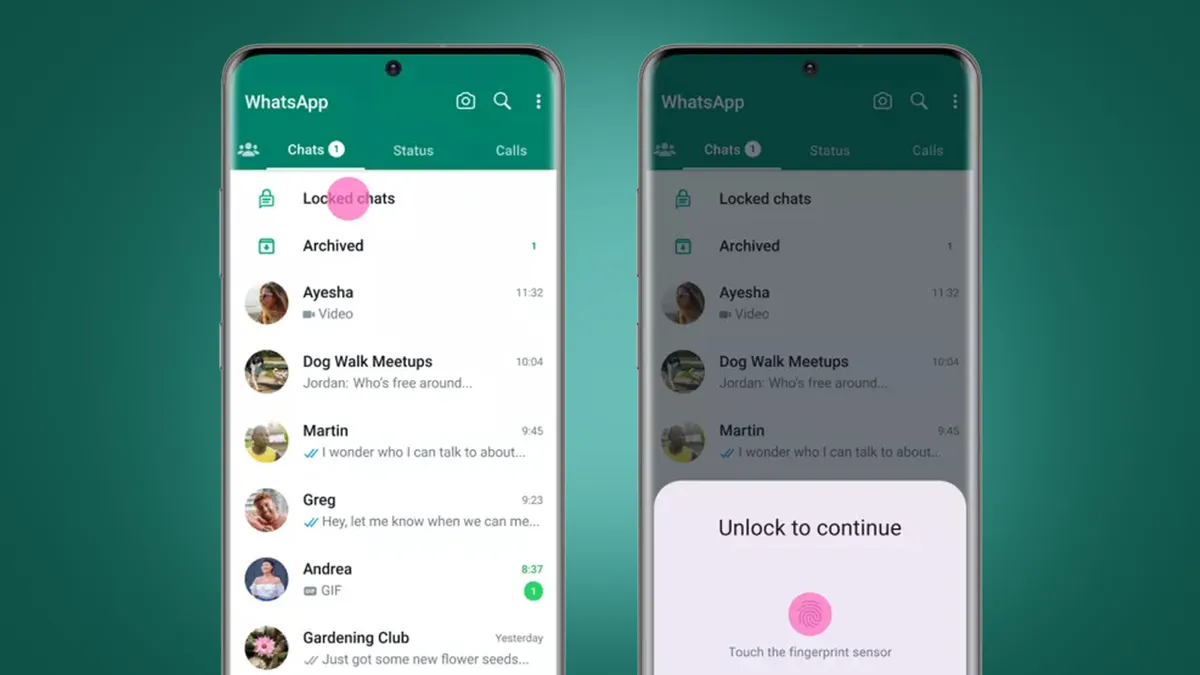
Another handy way to keep your messages safely protected is to use the App lock feature. This prevents anyone from using WhatsApp without first verifying their identity with biometric authentication, which is a solid way of preventing unauthorized people from reading your texts. Just go to Settings > Privacy > App lock, then pick a security method (such as Face ID on an iPhone).
That’s complemented by the Chat lock feature. Unlike App lock, Chat lock is used to secure individual chats rather than the entire app. Any locked chats are kept in the Locked Chats folder and require authentication, such as a fingerprint or device passcode, in order to be viewed.
You can enable this feature in Settings > Privacy > Chat lock. You’ll find your locked chats by going to the Chats tab and swiping down, then tapping Locked chats. This folder can be hidden by tapping Locked chats > Settings > Hide locked chats. Once you’ve done that, you’ll need to enter the Locked chats secret code (created under Locked chats > Settings > Secret code) into the app’s search bar in order to unlock everything.
Hide message previews

WhatsApp has an additional privacy and security feature in the form of message previews. If you don’t like people looking over your shoulder and seeing the contents of new messages revealed in your WhatsApp notifications, you can disable that in the app’s settings.
Just go to Settings > Notifications and scroll down to Show preview, then disable the toggle on the right-hand side. Now, new message notifications from WhatsApp will simply inform you that a person has texted you – your device will need to be unlocked in order to display the message’s contents on your phone’s home screen, which should keep nosy neighbors at bay.
Manage your storage
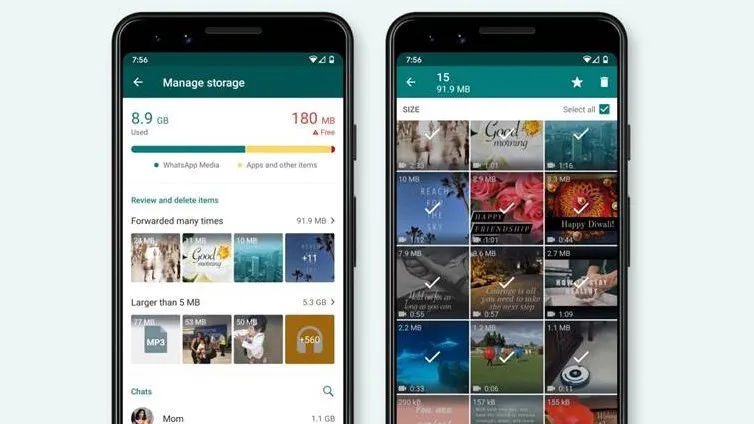
Using WhatsApp – especially when you send large photos and videos back and forth – can quickly fill up your device’s storage. Thankfully, there are some quick ways to put things right.
Open WhatsApp’s Settings tab and head to Storage and data > Manage storage. Here, you can see and delete any large files that are taking up significant space on your device. It’s also worth going back to the Storage and data section and adjusting the app’s media quality (both for uploads and downloads). Using HD quality will improve the images and videos you send and receive but will result in more space being eaten up.
Next, go back to Storage and data and scroll to the Media auto-download section. Here, you can set whether WhatsApp automatically downloads photos, audio, video and documents sent to you. If you’re concerned about your device’s storage, toggle all of these to Off so that received files are only downloaded manually.
Finally, go to Settings > Chats and disable the toggle next to Save to Photos. By default, WhatsApp automatically saves photos to your phone’s photos app, but this is a quick way to clog up your photo stream, particularly if you receive a lot of images. Disabling this setting ensures that your own photos are kept separate from any you’re sent in WhatsApp.
Back up your chats
We all know it’s important to back up our phones and computers, but what about our WhatsApp chats? Well, there’s an easy way to do it in the app, and you can even set it to happen on a schedule so you don’t need to lift a finger.
Note that WhatsApp’s own backup relies on you having a connected iCloud or Google account with enough storage space for your WhatsApp files. Make sure your account is connected and set up first before beginning.
Once that’s done, open WhatsApp and go to Settings > Chats > Chat backup, then tap Back up now to begin your first backup. Once that’s done, tap Auto backup and select a frequency, such as daily, weekly or monthly. You can disable automatic backups here too. On the Chat backup page, there’s also a toggle to include videos in your backups (which will take up more space).
Finally, there’s an option to secure your backups with end-to-end encryption. This will make them much more secure, but make sure you don’t forget the encryption password you set or you’ll lose access to the backups.
Follow TechRadar on Google News and add us as a preferred source to get our expert news, reviews, and opinion in your feeds. Make sure to click the Follow button!
And of course you can also follow TechRadar on TikTok for news, reviews, unboxings in video form, and get regular updates from us on WhatsApp too.
https://cdn.mos.cms.futurecdn.net/NxmSYU2NX5vmBNv3WeEtKa-1920-80.jpg
Source link
alexblake.techradar@gmail.com (Alex Blake)





