
Setting up a new Apple Watch in 2026 is deceptively quick – pair it, sign in, and you’re basically ready to go.
But I’ve found the default settings are designed for “everyone”, which often means too many pings, or a screen that doesn’t stay awake long enough to read.
You might not want every single one, but together they make the Watch calmer, clearer, and more useful from day one – without digging into niche health features or spending an hour in menus. Read on for 7 ways to make the best smartwatches even better.

Setting 1: Notifications

The very first thing I do is tame my notifications, because an Apple Watch that mirrors every iPhone alert quickly becomes exhausting in daily use.
In the iPhone Watch app, head to Notifications and work through the list, app by app. Anything that isn’t genuinely time-sensitive gets switched off on my wrist, while any essentials get customised so they’re useful at a glance.
For me, that usually means keeping Messages, WhatsApp, Calls, and FotMob (for my football fix), and being far more selective with everything else.
I really recommend doing this on day one to make the Watch immediately feel more focused and easier to live with.
Setting 2: Wake Duration
Next, I change how long the display stays on after waking. To me, the default can feel a bit stingy when you’re actually trying to read something.
On the Watch, go to Settings → Display & Brightness → Wake Duration, then choose Wake for 70 Seconds, which gives you enough time to scan a longer notification or check a timer without the screen going dark.
If you ever find yourself re-raising your wrist just to keep the Watch awake, this setting fixes it, and it’s easy to change or reverse based on your preferences.
Setting 3: Return to Clock

After that, I make sure the Watch reliably returns to the watch face, instead of hanging around in whatever app I last opened.
While this might sound like a small thing, it happens fairly regularly and seemingly at the most inconvenient times, like when your hands are wet.
The setting is called Return to Clock, which you’ll find on the Watch under Settings → General → Return to Clock.
I like a fairly quick global return time, because it keeps the Watch feeling like a watch rather than a mini-phone, but I’ll make exceptions when needs be, such as during workouts.
It’s a small change, but it reduces the “why am I still in this app?” feeling.
Setting 4: Live Activities

Live Activities can be genuinely handy on Apple Watch, but I don’t love them when they take over my screen and stop the Watch feeling glanceable.
On the Watch, go to Settings → Smart Stack → Live Activities, where you can control how they appear and how persistent they are. By default, Apple notes that the Smart Stack can stay open while a Live Activity is running.
I tend to dial this back so Live Activities are available when I choose to look for them, rather than acting like a semi-permanent overlay.
Setting 5: Fall Detection

This is the one feature I set up even though I’d love never to rely on it.
On a new Apple Watch, I head straight to Settings → SOS → Fall Detection (or the iPhone Watch app under Emergency SOS) and make sure it’s configured intentionally.
You can choose between Always On and a mode that only runs during workouts, so it’s worth thinking about when you’re most likely to benefit from it.
There’s also a small but important dependency Apple calls out: Wrist Detection affects what the Watch can do after a hard fall is detected.
If Wrist Detection is turned off, the Watch won’t automatically try to call emergency services in response to a fall, so make sure to enable it if you want the emergency call feature.
Setting 6: Workout-specific tweaks
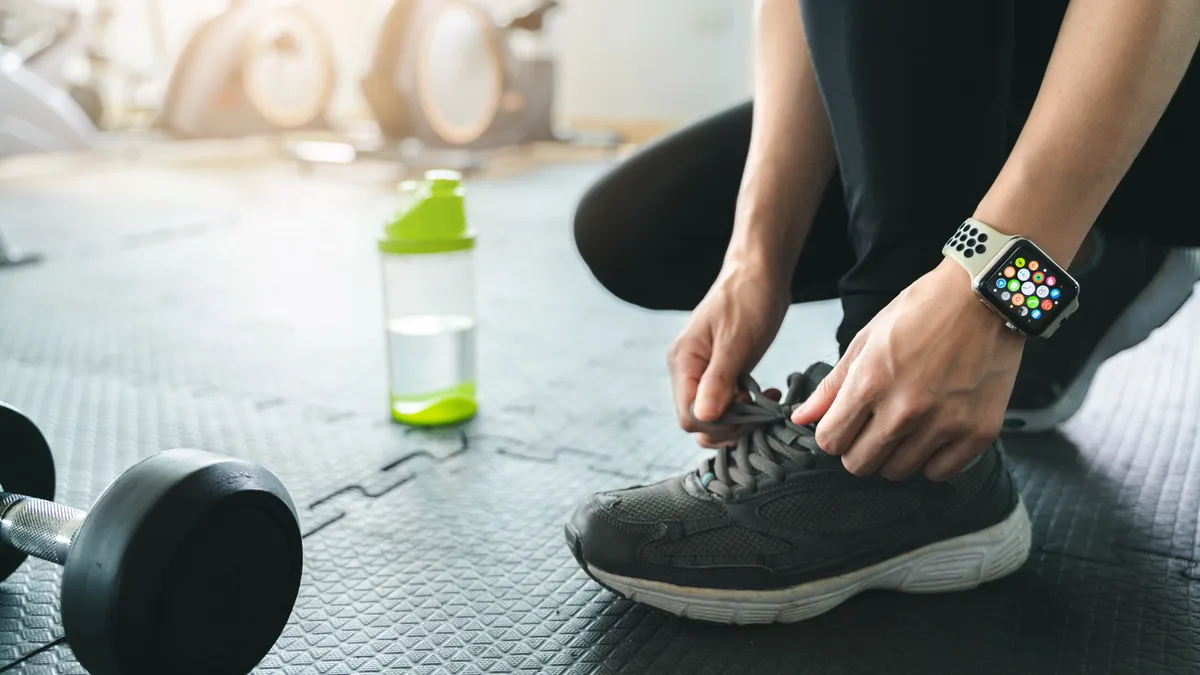
If you use your Apple Watch for fitness at all, it’s worth taking a minute to check the Workout settings before you log your first session.
The big one for me is Auto-Pause, which can be helpful in theory, but frustrating in practice if it keeps stopping and starting your workout.
If you’re running in a city, for example, you might appreciate it pausing when you’re stuck at crossings. But if you’re doing intervals, circuits, or anything where your movement is stop–start by design, it can quickly become an annoyance. So you’ll want to turn off Auto-Pause for any kind of interval training.
Setting 7: Sound and Haptics

The final thing I dial in is how the Watch gets my attention, because the default ‘balance’ tone can be a bit much in public.
On the Watch, open Settings → Sounds & Haptics, and think about what you actually need to hear versus what you just need to feel.
I usually tone down Sound and tone up Haptics so notifications stay discreet, while keeping audible alerts for moments where a tap could slip by, like alarms.
It’s a small quality-of-life change, but it makes the Watch feel more polished immediately, especially when working in public.
Follow TechRadar on Google News and add us as a preferred source to get our expert news, reviews, and opinion in your feeds. Make sure to click the Follow button!
And of course, you can also follow TechRadar on YouTube and TikTok for news, reviews, unboxings in video form, and get regular updates from us on WhatsApp too.
https://cdn.mos.cms.futurecdn.net/TKKMNkYfgmgHdDs7hx5HiB-1920-80.jpg
Source link





