
So far, it’s fair to say that Apple Intelligence hasn’t been a massive success, but there’s potential there – and one of the features that I think has the most potential is also among the first I’d turn off.
That might sound odd, but ‘potential’ is the key word there, as right now this feature just isn’t ready – even though it rolled out back with iOS 18.1, and has since been improved in iOS 26.
If you haven’t guessed, I’m talking about notification summaries, an AI tool that – as the name suggests – will summarize notifications. So for example if you get a long series of messages, the summary will condense them into a brief overview of the key points, meaning that you don’t necessarily have to read them immediately, or at all.
This can save you time if you’re getting a lot of notifications, and help you prioritize the most important ones. Or at least it could if I could rely on it.

Why I turn off notification summaries
I love the idea of notification summaries – they could allow me to spend less time looking at my phone, and especially less time reading endless messages in group chats, just in case there’s something important. But right now, I find that even with notification summaries enabled, I’m doing that anyway, because they don’t always get things right.
In fact, soon after launch, Apple disabled summaries for news apps, because this tool made major errors in summarizing news stories.
The feature was fully enabled again with iOS 26, but while it has seemingly had some behind the scenes improvements, it’s still not totally reliable, with the iOS 26 version of its UI making a point to emphasize that errors may occur.
And errors do occur – notifications will still sometimes be incorrectly summarized, but what more often happens in my experience is that when it attempts to summarize multiple messages or particularly long texts, it will often miss key details. So what’s there might be correct, but it still won’t tell me everything I need to know.
So since I can’t rely on it, I just end up reading the summaries and then still immediately reading the messages or articles anyway – which takes even more time than when I just don’t use notification summaries at all.
Still, I am hopeful that one day this feature will be reliable enough to, well, rely on, so I’ll still turn it on again next time it gets updated, just to see if it’s good enough yet. But for now, these summaries spend most of their time switched off.
How to turn notification summaries off
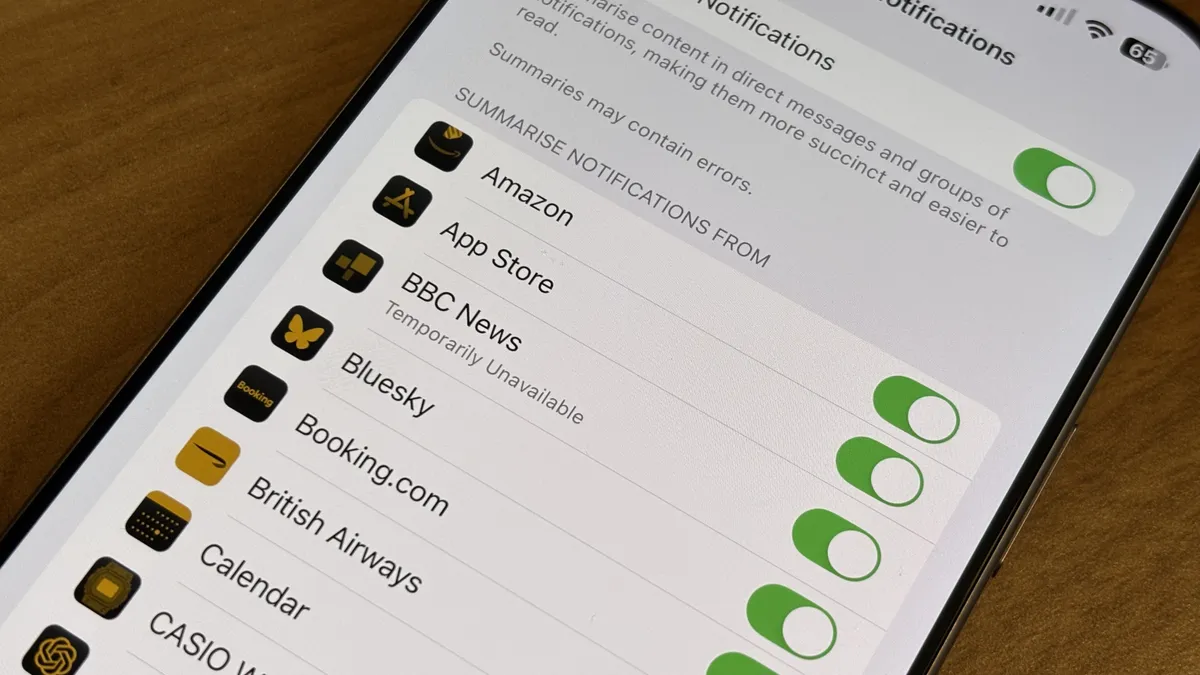
Thankfully, if you’ve previously enabled notification summaries, it’s easy to turn them off again, though annoyingly using the search bar in the Settings menu to search for ‘notification summaries’ or ‘summarize notifications’ fails to find anything.
Instead, you’ll want to do the following:
- 1. Open Settings
- 2. Tap Notifications
- 3. Then tap Summarize Notifications
- 4. Then turn the Summarize Notifications toggle off
Pro tip: customize the feature instead
Personally, I tend to keep notification summaries fully disabled – other than when I want to test them again with new versions of iOS. But another option is to customize them so that only certain types of notifications get summarized.
So you might for example choose not to summarize news apps or anything else where accuracy is super important, but allow the feature to summarize social media posts and content from other apps.
But you can get as granular as you want, toggling the feature on or off for specific apps. To do this:
- 1. Open Settings
- 2. Tap Notifications
- 3. Then tap Summarize Notifications
On that screen, you’ll see the toggle to turn notification summaries off, but underneath that, there are also toggles for individual apps – so you can just enable or disable it for specific apps.

Alternatively, the first time you turn notification summaries on – or after turning it off and then on again – you’ll be presented with three tick boxes, letting you select app categories that you want to summarize notifications for – the options being ‘News & Entertainment’, ‘Communication & Social’, and ‘All Other Apps’.
So if you just want to enable or disable it for one or more of those categories, that’s a faster approach than ticking and unticking individual apps.
Follow TechRadar on Google News and add us as a preferred source to get our expert news, reviews, and opinion in your feeds. Make sure to click the Follow button!
And of course you can also follow TechRadar on TikTok for news, reviews, unboxings in video form, and get regular updates from us on WhatsApp too.
https://cdn.mos.cms.futurecdn.net/yEWPQBCjkM4nSDaJeShHgE-1741-80.jpg
Source link





