
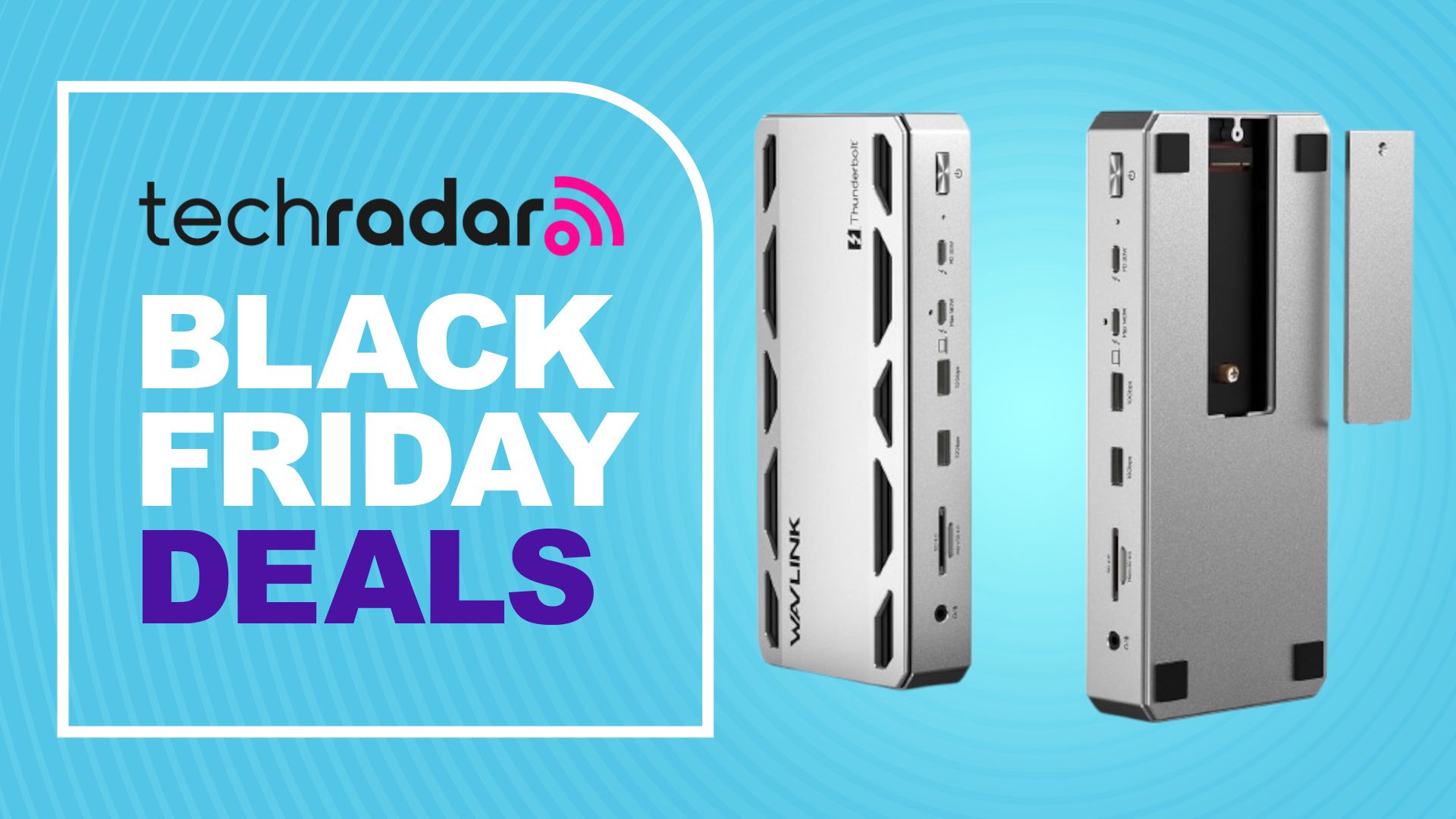
Black Friday may be over, but it’s still a great time to upgrade your home office technology – particularly if you’re a remote professional or small business.
A docking station is essential for modern remote working, allowing you to connect a host of peripherals and accessories to your device – everything from external monitors to keyboard and mice.
I’ve reveiewed a whole host of docking stations for TechRadar Pro – here’s the best deals I’ve found for the Black Friday/Cyber Monday weekend.
My top Cyber Monday Docking Station deals
Our first three choices cover those solutions that work with USB-C, and as such, they’re not especially expensive. The cheapest is the unusual TobenONE UDS060, an incredibly simple eleven-port dock that doubles as a dial controller. That’s the same number of ports as the Baseus Spacemate 11-in-1 Dock, but the extra expense does at least buy you a power supply on the Baseus, which was missing on the TobenONE UDS060.
The jump to the Beelink EX Mate Pro is significant, even when you get a great deal, but this dock has four M.2 slots inside and can output 96W for charging. And, critically, it can use USB4 with 80Gbps connections if you have that port. That makes it worth the extra outlay, and the deal makes this a bargain for USB4 laptop owners.
I have two Ugreen docks in this collection, and the Maxidok 10-in-1 is the first, and it’s gorgeously made and perfect for anyone with a recent MacBook that supports Thunderbolt 5. What’s great about this dock is that, with a modest number of ports and the massive bandwidth of Thunderbolt 5, most devices will get all the bandwidth they need. However, it needs USB4v2 or Thunderbolt 5 ports, and the link cable is integrated.
Kensington makes some excellent docks, so it was important to include one you can get at a reasonable price in the deals. The Kensington SD5010T5 TB5 Dock is sized to work nicely with a Mac Mini, although the 140W of charging power is irrelevant to that device. The only reason you might pick our next choice and not this one is that it only has a single Thunderbolt downlink port. But it does support up to three monitors.
Another more flexible Thunderbolt 5 choice is the HyperDrive Next Thunderbolt 5 Dock, as it has an integrated M.2 slot, and it can deliver up to 140W of charging power. You need Thunderbolt 5 to get the most out of it, though it will work with Thunderbolt 4, Thunderbolt 3, USB4 and even USB-C. When I first reviewed this equipment, it cost more than $600, so the deal price is a dramatic drop.
The final two docks are personal favourites, and I’ve used both extensively.
If you don’t have Thunderbolt 5 and don’t expect that to change, the Caldigit TS4 Thunderbolt Dock is a brilliant choice for USB and Thunderbolt 3 or 4 use. It isn’t cheap even at the deal price, but it has a huge number of ports and is terrifically engineered.
My final dock is the legendary Ugreen Maxidok 17-in-1, which is a Thunderbolt 5 dock with the full 120Gbps specification, 140W charging and silent operation. It’s exclusively for TB5 or USB4v2 use, but it’s easily worth the normal asking price, never mind the deal offer.
Black Friday and Cyber Monday Docking Station deals – buying advice
What Dock should I choose during Black Friday and Cyber Monday?
Obviously, if you have budget constraints, those will dictate how much you can spend and what sort of features you will get.
But the other factor in all of this is the connection technology in use. The cheapest docks, often with the fewest ports, use USB-C. And these two things are not unrelated, as USB-C has much less bandwidth than Thunderbolt or USB4.
You can get USB-C docks with lots of ports, but that doesn’t mean that you can use all those ports at the same time, or get the full performance out of them.
If your laptop only has USB-C ports, those are the docks you can use, but be realistic about what to expect compared to docks that support Thunderbolt and USB4.
Conversely, more laptops with USB4 or Thunderbolt will work with USB-C docks, but that’s a poor use of those ports. If you have Thunderbolt, use a dock made for that interface, either Thunderbolt 3, 4 or 5. And if you have USB4, then check that the dock you like the look and price of supports connecting with that technology.
My only other recommendation is that you consider what happens when you get a new laptop, which might have better connection technology. As an example, the Caldigit TS4 dock supports USB-C, but it can also handle connecting using Thunderbolt 3 and 4. So if you only have USB-C currently, but know that your next machine will have Thunderbolt, it might be a good choice.
What features should I check when selecting the right Docking Station deal?
Other than matching the connection technology, as I’ve already mentioned, the next thing to consider is what charging power a dock can send to a connected laptop. Those who use a Dock with a Mac Mini or a Desktop PC won’t care about this, but those using laptops will want enough watts returned on the connection line to charge the laptop while it is being used.
Docks typically start at about 65W and peak at 140W, with many supporting 100W. If you have a laptop that needs 100W to charge, then getting a dock that only delivers 65W would be a major mistake. The laptop battery charge might not increase and could even drop while you use it.
Another important detail about docks that many people miss depends on whether you intend to use it with monitors. Most docks, but not all, have monitor connections, usually HDMI or DisplayPort. But some of the more expensive ones that use Thunderbolt don’t come with any dedicated monitor connections. With those, you are meant to use the Thunderbolt downlinks with suitable adapters to connect monitors. This issue introduces extra expense that you might not have realised until you have the dock and try to connect it up.
One last caveat about monitors I need to mention revolves around Apple Mac users, and how older MacBook and Mac Mini systems are limited in the number of external displays they support. For whatever reason, Apple limited the number of external displays on some models, or made it so that you could have two external displays, but only with the same content. More modern hardware has addressed these issues, and the latest even supports
My final thought is to consider how much bandwidth each connection type has, and how the dock might share that with the peripherals you connect.
USB docks might have only 10Gbps to share, so connecting external SSDs to them and expecting the same speed as you might see when connecting them directly is unrealistic.
Thunderbolt 3 can either be 20Gbps, as in some Dell docks, or 40Gbps, and using monitors with them can reduce the bandwidth for other uses. Thunderbolt 4 has the same bandwidth but can more elegantly divide display bandwidth, enabling other things to achieve faster transfers.
The best speeds are achieved with USB4v2, which is 80Gbps, and Thunderbolt 5, which can be 80Gbps or even 120Gbps with a boost mode. In boost mode, 40 Gbps of capacity is allocated for display connections that doesn’t come from the 80Gbps shared with other dock devices. Running dual 4K 60Hz monitors uses roughly 25–30 Gbps of the 40 Gbps total, in case you wondered.
https://cdn.mos.cms.futurecdn.net/ickMQe8z9viCqy7teEXeyD-1920-80.jpg
Source link
mark@pickavance.com (Mark Pickavance)