
Business laptops for AI workloads need enough local compute to run inference tasks, copilots, and on-device models without lag or battery drain. CIOs and IT leaders now face procurement decisions that weigh NPU performance, memory capacity, and thermal design alongside cost and manageability. In this article, I compare six leading business laptops and explain which workloads each one is suited to handle.
| HP ZBook X G2i | AI-assisted work productivity | Intel Core Ultra 5 236V with vPro; Copilot+ PC NPU | Integrated Intel Arc graphics | 16GB RAM; 512GB SSD |
| Lenovo ThinkPad X1 Carbon Gen 14 Aura Edition | Content development | Intel Core Ultra 9 285HX with vPro; NPU up to 13 TOPS | NVIDIA GeForce RTX 5080 with 16GB VRAM | 64GB RAM; 1TB SSD |
| HP EliteBook X G2i | Data analysis & business intelligence | Intel Core Ultra 7 366H; 50-TOPS NPU | Integrated Intel graphics | 64GB RAM; 1TB SSD |
| Dell Pro Max 16 Plus | Technical collaboration & visual reviews | Intel Core Ultra 7 366H; NPU up to 50 TOPS | Integrated Intel graphics | 32GB RAM; 1TB SSD |
| Lenovo ThinkPad T16g Gen 3 | Software development | Intel Core Ultra 9 285HX with vPro; Intel AI Boost NPU | NVIDIA RTX Pro 3000 with 12GB VRAM | 64GB RAM; 1TB SSD |
| Dell Pro 14 Plus | Design & engineering fieldwork | Intel Core Ultra 7 356H; 50-TOPS NPU | NVIDIA RTX Pro 3000 with 12GB VRAM | 64GB RAM; 1TB SSD |
1. HP ZBook X G2i: Best for AI-assisted work productivity
My rating: 4.68 out of 5
Starting price: $3,609
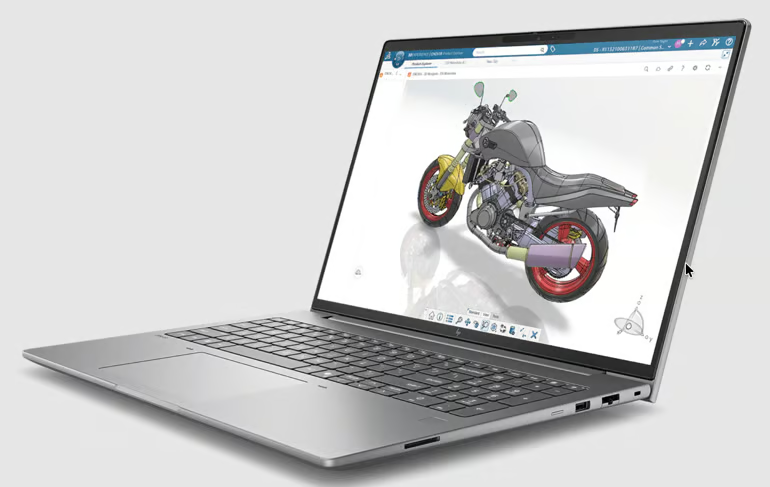
Why I chose HP ZBook X G2i
The HP ZBook X G2i is ideal for technical professionals who rely on AI assistance throughout the day while running data-intensive applications. Its 50-TOPS NPU handles supported AI tasks such as transcription, document generation, and information retrieval, while the RTX Pro 3000 manages GPU-accelerated workloads like rendering, visualization, and AI inference.
AI-enabled applications can offload compatible tasks to the NPU, leaving the CPU available for spreadsheets and business software. With 64GB of memory, the system can also keep multiple resource-intensive applications open without frequent lags. This allows users to work with AI features in the background without interrupting graphics or compute-heavy workflows.
The tradeoff is mobility and cost. At 4.41 pounds and priced as a mobile workstation, the ZBook is more than most knowledge workers need for meeting summaries, email drafting, or document searches. For organizations deploying AI-powered productivity features across a broader workforce, the Dell Pro 14 Plus delivers a 40-TOPS NPU in a lighter, lower-cost system.
Pros
|
Cons
|
HP ZBook X G2i Specifications
| Processor: Intel Core Ultra 7 356H, 16 cores, up to 4.7 GHz |
Mobility: Mobile workstation; 200W AC adapter |
| NPU: Intel AI Boost, 50 TOPS |
Display: 16-inch 2.5K IPS, 2560 × 1600, 120Hz, 400 nits, 100% DCI-P3 |
| Graphics: NVIDIA RTX Pro 3000 Blackwell, 12GB GDDR7 |
Weight: Starts at 4.41 lb |
| Memory & storage: 64GB DDR5; 1TB PCIe Gen5 NVMe SSD |
Battery life: Up to 19 hours, preliminary MobileMark 30 estimate; 96Wh battery |
2. Lenovo ThinkPad X1 Carbon Gen 14 Aura Edition: Best for content development
My rating: 4.64 out of 5
Starting price: $1,884
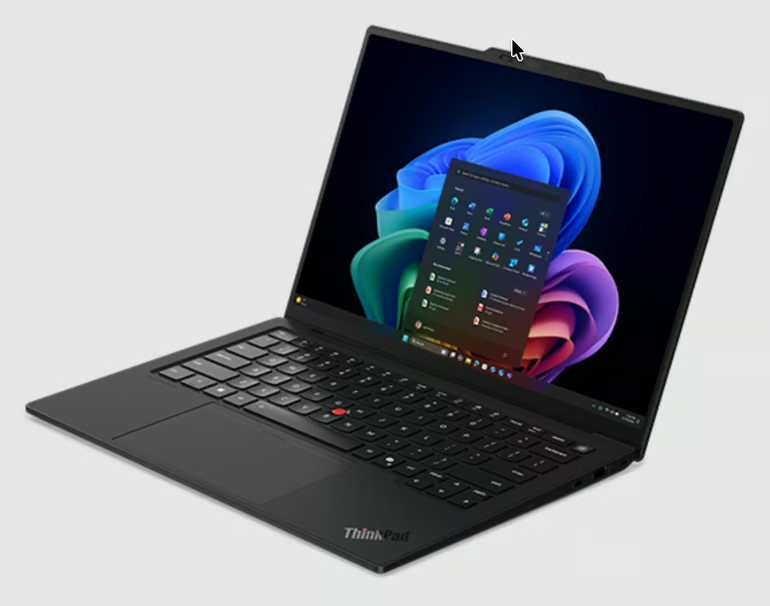
Why I chose Lenovo ThinkPad X1 Carbon Gen 14 Aura Edition
I recommend the ThinkPad X1 Carbon for users who spend much of the day creating content on the go. This unit combines full sRGB coverage with 32GB of memory and weighs only 2.15 pounds, making it ideal for traveling.
Applications that support the NPU can use it for local transcription or image effects, which keeps those tasks from competing with the CPU. Full sRGB coverage supports digital graphics, while 32GB of memory lets users keep research tabs open alongside content applications. Based on the battery estimate, users can also spend more time away from a power outlet.
Integrated graphics can increase export times or reduce preview performance during video editing. They also provide fewer processing resources for 3D projects or GPU-based image generation. Creators who regularly handle these workloads should consider the ThinkPad T16g Gen 3 for its discrete RTX graphics and additional expansion options.
Pros
|
Cons
|
Specifications
| Processor: Intel Core Ultra 7 366H, 16 cores, up to 4.8 GHz |
Mobility: Ultraportable business AI PC; 65W USB-C adapter |
| NPU: Intel AI Boost, up to 50 TOPS |
Display: 14-inch WUXGA IPS touch, 1920 × 1200, 500 nits, 100% sRGB |
| Graphics: Integrated Intel Graphics |
Weight: Starts at 2.15 lb |
| Memory & storage: 32GB LPDDR5X; 1TB PCIe NVMe SSD |
Battery life: Up to 16 hours in MobileMark 30; 58Wh battery |
3. HP EliteBook X G2i5: Best for data analysis & business intelligence
My rating: 4.58 out of 5
Starting price: $3,189
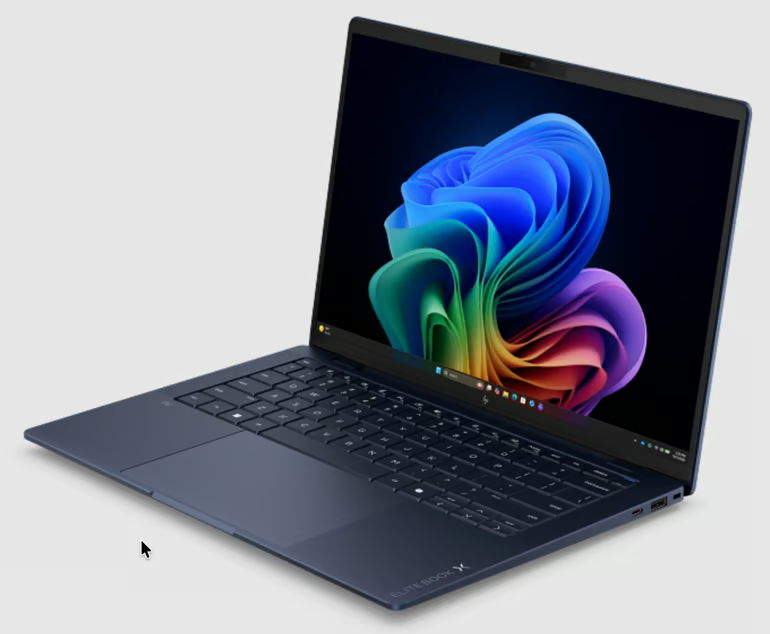
Why I chose HP EliteBook X G2i5
The HP EliteBook X G2i5 includes 64GB of memory, enough for working with large spreadsheets along with business intelligence tools. Its Core Ultra processor handles queries and calculations, while compatible software can assign certain AI tasks to the 50-TOPS NPU.
Users can load larger datasets locally or keep several dashboards open without reaching the laptop’s memory limit as quickly. When an application supports NPU processing, it can assign tasks such as summarization or pattern detection to the NPU while the CPU continues running database queries. The EliteBook weighs roughly 2.2 pounds, making it easy to carry between offices or client sites.
Integrated Intel graphics provide limited support for model training and other GPU-intensive analytics. Alternatively, the Dell Pro Max 16 Plus offers an RTX Pro GPU for larger AI models and extended high-load processing.
Pros
|
Cons
|
Specifications
| Processor: Intel Core Ultra 7 366H, 16 cores, up to 4.8 GHz |
Mobility: Ultraportable business AI PC; 65W USB-C GaN adapter |
| NPU: Intel AI Boost, 50 TOPS |
Display: 14-inch WUXGA IPS, 1920 × 1200, 400 nits, 100% sRGB |
| Graphics: Integrated Intel Graphics |
Weight: Starts at 2.2 lb |
| Memory & storage: 64GB LPDDR5X; 1TB PCIe NVMe SSD |
Battery: 68Wh battery |
4. Dell Pro Max 16 Plus: Best for technical collaboration & visual reviews
My rating: 4.46 out of 5
Starting price: $5,402.70
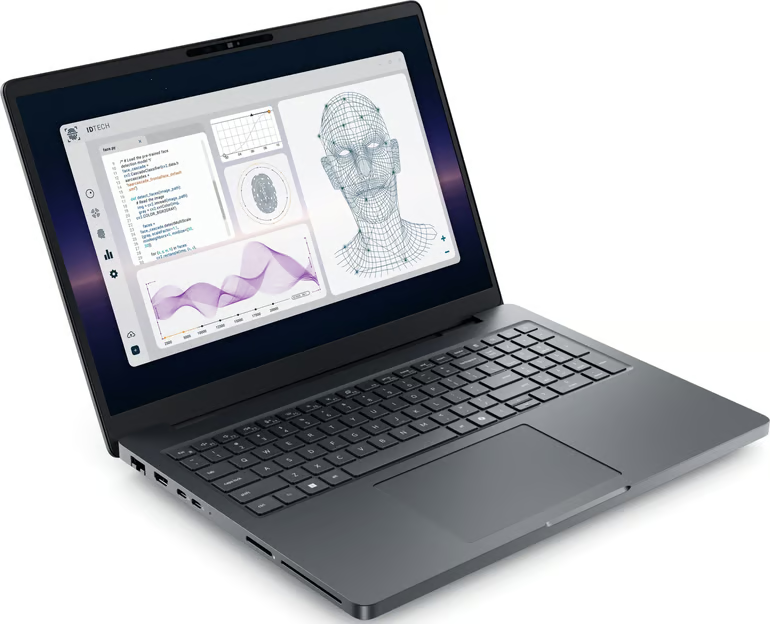
Why I chose Dell Pro Max 16 Plus
The Dell Pro Max 16 Plus supports technical teams working with 3D designs or large datasets. Its RTX Pro graphics can process detailed visuals, while 64GB of memory allows users to open the source application during screen sharing.
Camera options include an 8MP HDR model with dual-array microphones. The 16-inch display has enough space to show shared material beside meeting controls, and Wi-Fi 7 supports compatible office networks. During video meetings, engineers and data specialists can review visual details while keeping their design or analytics applications in use.
The laptop weighs 5.63 pounds, and its 280W adapter adds more weight to a travel bag. Employees who primarily join document-based calls may prefer the ThinkPad X1 Carbon, which starts at 2.15 pounds and is easier to carry between meeting rooms.
Pros
|
Cons
|
Specifications
| Processor: Intel Core Ultra 9 285HX vPro, 24 cores, up to 5.5 GHz |
Mobility: Mobile workstation; 280W USB-C adapter |
| NPU: Intel AI Boost, up to 13 TOPS |
Display: 16-inch FHD+ non-touch, 1920 × 1200 |
| Graphics: NVIDIA RTX Pro 3000 Blackwell, 12GB GDDR7 |
Weight: Starts at 5.63 lb |
| Memory & storage: 64GB DDR5; 1TB performance SSD |
Battery: 96Wh battery |
5. Lenovo ThinkPad T16g Gen 3: Best for software development
My rating: 4.29 out of 5
Starting price: $3,779
Why I chose Lenovo ThinkPad T16g Gen 3
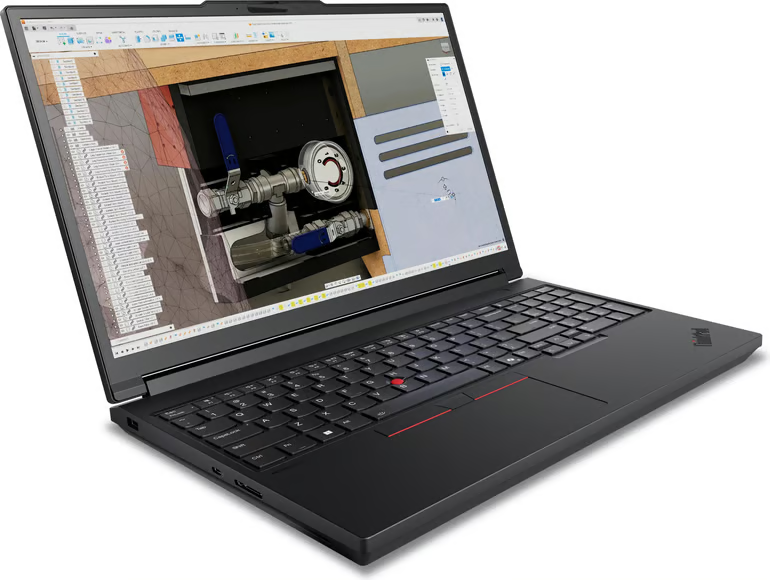
Developers who run containers locally or compile large codebases can use the ThinkPad T16g Gen 3 for these processor-intensive tasks. Its RTX 5080 Laptop GPU supports CUDA workloads and local model testing without sending each job to a cloud GPU.
With 64GB of memory, developers can keep an IDE open beside Docker containers or allocate memory to a Linux development environment. Four memory slots support configurations up to 192GB, while three SSD slots allow users to store project files separately from model datasets. The 13-TOPS NPU plays a smaller role because compilers and containers primarily use the CPU, while model testing relies on the GPU.
When a software build and GPU model test run at the same time, the 180W adapter may limit the power available to both processors. Fan noise also increases during continuous workloads. Developers who require RTX Pro graphics or professional GPU drivers may prefer the Dell Pro Max 16 Plus, which comes with a 280W adapter.
Pros
|
Cons
|
Specifications
| Processor: Intel Core Ultra 9 285HX vPro, 24 cores, up to 5.5 GHz |
Mobility: High-performance business laptop; 180W USB-C GaN adapter |
| NPU: Intel AI Boost, up to 13 TOPS |
Display: 16-inch WQUXGA IPS, 3840 × 2400, 800 nits, 100% DCI-P3 |
| Graphics: NVIDIA GeForce RTX 5080 Laptop GPU, 16GB GDDR7 |
Weight: Starts at 5.6 lb |
| Memory & storage: 64GB DDR5; 1TB PCIe NVMe SSD |
Battery: 99.9Wh battery |
6. Dell Pro 14 Plus: Best for design & engineering fieldwork
My rating: 4.18 out of 5
Starting price: $1,829
Why I chose Dell Pro 14 Plus
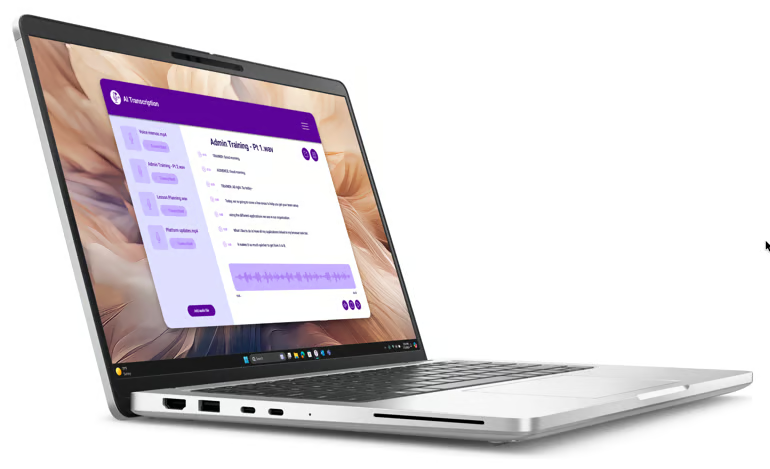
The Dell Pro 14 Plus is best suited to construction professionals who review drawings or work with browser-based CAD and BIM applications. With its 14-inch design and long battery life, this laptop is easy to carry between project sites and field inspections.
Intel Arc graphics can run 2D CAD software and display browser-based models, while the 40-TOPS NPU processes AI features from compatible applications. The configuration, however, includes 16GB of memory, which may be insufficient when engineering applications or large project files are open simultaneously.
Integrated graphics restrict GPU-based rendering, and the base display covers only 51% of the sRGB color space. For 3D modeling or rendering, the HP ZBook X G2i provides an RTX Pro 3000 GPU and 64GB of memory.
Pros
|
Cons
|
Specifications
| Processor: Intel Core Ultra 5 236V vPro |
Mobility: Standard business AI PC; 65W USB-C adapter |
| NPU: Intel AI Boost, up to 40 TOPS |
Display: 14-inch FHD+ non-touch, 1920 × 1200 |
| Graphics: Integrated Intel Arc Graphics |
Weight: Starts at 3.09 lb |
| Memory & storage: 16GB LPDDR5X; 512GB SSD |
Battery: 55Wh battery |
What’s hot at TechRepublic
How I evaluated the best business laptops for AI workloads
I evaluated each laptop against its assigned AI workload, so additional processing power counted only when the role could use it. Specifications came from official manufacturers and Intel documentation. All six laptops received scores on the same five-point scale across six weighted categories.
- Procurement and lifecycle value (15%): I recorded the public price of each recommended configuration and checked the warranty included at purchase. Repair access and vendor deployment resources also affected the score because both can influence costs throughout the device’s service life.
- Business laptop essentials (15%): I checked whether the processor could run the applications associated with each role. Memory and storage were scored based on expected file sizes and application use. I also reviewed the available ports and display hardware, then considered operating system options and business connectivity.
- AI workload suitability (30%): This category received the highest weight because it measured the CPU and NPU performance in handling AI tasks. Graphics and memory influenced the score when the workload relied on local processing. I also confirmed whether compatible applications could use the available AI hardware.
- Enterprise security and management (20%): I assessed each laptop’s built-in security features and user authentication options. Remote admin capabilities contributed to the score and vendor documentation for fleet deployment and recovery.
- Mobility and workplace experience (10%): I considered the combined weight of the laptop and power adapter when scoring portability. Battery capacity and charging options determined how long the laptop could operate away from an outlet. I scored the display according to each role’s visual requirements and evaluated the camera and microphones for video collaboration.
- Expert assessment (10%): After calculating the specification scores, I checked whether each configuration included the hardware required for its applications. I gave a lower score when a laptop included a dedicated GPU or more memory than the role required.
What should organizations look for in business laptops for AI workloads?
Organizations should begin with the AI tasks assigned to each role and the applications being used. This assessment shows whether a standard business laptop is sufficient or the role requires additional local processing capacity.
Match hardware to the workload
An NPU can process compatible assistant features with lower power consumption, while a discrete GPU supports local model development or 3D rendering. Memory capacity should reflect the size of the datasets and applications employees access together.
Confirm application compatibility
Check whether existing software can send AI tasks to the proposed NPU or GPU. IT should also determine whether processing occurs locally or in the cloud because this affects latency and data handling.
Read more: Local AI vs. Cloud AI for Enterprise Workloads
Evaluate security and management
Business laptops should support the organization’s encryption requirements and identity controls. Remote configuration and recovery tools can reduce the time spent on servicing devices across multiple locations. Intel’s commercial PC guidance also recommends validated hardware configurations for fleet stability.
Related: The Hidden Security Problem Holding Enterprise AI Back
Test mobility and collaboration
Battery claims should be tested while running company applications and endpoint agents. Employees who attend video meetings also need cameras and microphones that capture clear recordings for AI-generated transcripts.
Calculate lifecycle cost
Compare warranty coverage and repair options before deployment. During pilot, track application performance and support requests to determine whether the configuration is suitable for a wider rollout.
Related: How CIOs Can Turn AI Device Investment Into Business Value
How do businesses choose between workstations and laptops?
A mobile workstation is also a laptop, but it provides professional graphics and higher memory limits for workloads that exceed the capacity of a standard business PC. Businesses should compare the applications each role uses before choosing between the two.
| Primary workloads | For cloud-based AI and office assistants. An NPU can process compatible features such as transcription or background removal locally. | For local model development or 3D rendering. These tasks can use a discrete GPU and additional memory. |
| Software requirements | Confirm that existing applications can use the NPU or integrated GPU. Otherwise, the added AI hardware remains idle. | Check whether CAD or engineering software requires professional graphics drivers. Some apps also certify specific workstation configurations. |
| Processing capacity | Integrated graphics can support office software and light creative work. Memory options generally cover routine multitasking. | Professional GPUs process larger models and detailed visual assets. Higher memory limits allow larger datasets to remain open locally. |
| Mobility | Lower weight and smaller power adapters support frequent travel. Battery capacity should be tested while running company software. | Added cooling and discrete graphics increase weight and power use. These systems work best when processing capacity takes priority over the weight. |
| Cost | Lower purchase prices support wider fleet deployment. | Higher prices may be justified when shorter processing times reduce project delays. |
During a pilot, IT should record processing time and peak memory use for each role’s applications. Intel and HP recommend matching device capacity to the workload rather than issuing one configuration across the fleet.
Related: AI-Ready Workplaces Need More Than AI PCs
Which professionals benefit most from AI workstations?
AI workstations benefit professionals whose applications depend on a discrete GPU or high memory capacity. They also support employees who need local processing for protected data. The main groups include:
- Data scientists and machine learning developers: Local model training and fine-tuning require GPU memory, while large datasets consume system RAM.
- Engineers and product designers: CAD simulations and generative design software can use professional graphics with certified drivers.
- Media professionals: High-resolution video editing and 3D animation require more graphics capacity than integrated GPUs provide.
- Software developers: GPU-based code testing and local AI development benefit from Compute Unified Device Architecture (CUDA) support or similar acceleration frameworks.
Employees who simply use meeting summaries or document assistants can work with a standard AI PC. IT teams should assign workstations after they confirm which applications use the GPU and how much memory each workload consumes. HP and Intel both identify local AI development and professional visualization as workstation workloads.
The OneHP portfolio provides an example of how organizations can evaluate business PCs and workstations within the same workplace technology plan. After selecting devices by workload, IT can determine which endpoint controls and support services each employee group will require throughout the device lifecycle.
FAQS
When does an AI laptop need a dedicated GPU?
An AI laptop needs a dedicated GPU when users train models locally or render 3D designs. GPU acceleration can also reduce processing time in video editing and software built for CUDA. Integrated graphics are usually sufficient for meeting summaries or cloud-based AI because remote servers perform most processing.
Does a business laptop need an NPU to run AI applications?
No. Cloud-based AI applications run on the provider’s servers and do not require an NPU. An NPU processes compatible on-device features such as transcription or video effects with lower power consumption. Before purchasing AI PCs, confirm whether employees’ applications can use the proposed NPU.
How many NPU TOPS does a business AI laptop need?
A 40-TOPS NPU meets the current Copilot+ baseline and covers features such as live captions or video effects. Employees who run several local AI tools may benefit from 45 to 50 TOPS. For model training, GPU performance and memory capacity are more important than NPU TOPS.
https://assets.techrepublic.com/uploads/2026/07/kaitlyn-baker-vZJdYl5JVXY-unsplash-1.jpg?f=jpeg
Source link
Marianne Sison