
My Garmin watch has recently been getting into hot water, and I mean that literally. I’m wearing the Garmin Venu 4 pretty much all the time these days, including on runs, in the gym, in the sea and in the shower.
Unfortunately, this has given rise to an unexpected problem. Four times now, I’ve noticed in the shower that I’ve been on an unintentional phone call, usually to my Dad, who’s first in my contacts list on my watch. This is caused by the cascading water in the shower activating the watch’s touchscreen, but it’s very odd that it reacts the same way each time.
How to set up a Touch Lock short cut
Depending on which Garmin watch you own, there are several ways you can set up a shortcut to Touch Lock your Garmin watch.
I own a Garmin Venu 4, and while it does have two buttons, many other Garmin watches have five, which allow you to set up several ‘hot key’ shortcut options. The two-button Venu series doesn’t have those.
Instead, by holding down the UP/MENU button, you can summon a selection of settings-based controls such as Find My Phone, Do Not Disturb, and Power Off.
Scrolling down, you’ll see an Edit bar. Tap that, then Add, then scroll down the list until you come to the yellow Touch Lock button. Hit the green + sign next to it.
After that, you’ll be able to hold the UP/MENU button to summon your list of shortcuts, and simply tap Touch Lock to activate it before you hop in the shower, safe in the knowledge no-one can hear you sing.
How to set up a hot key
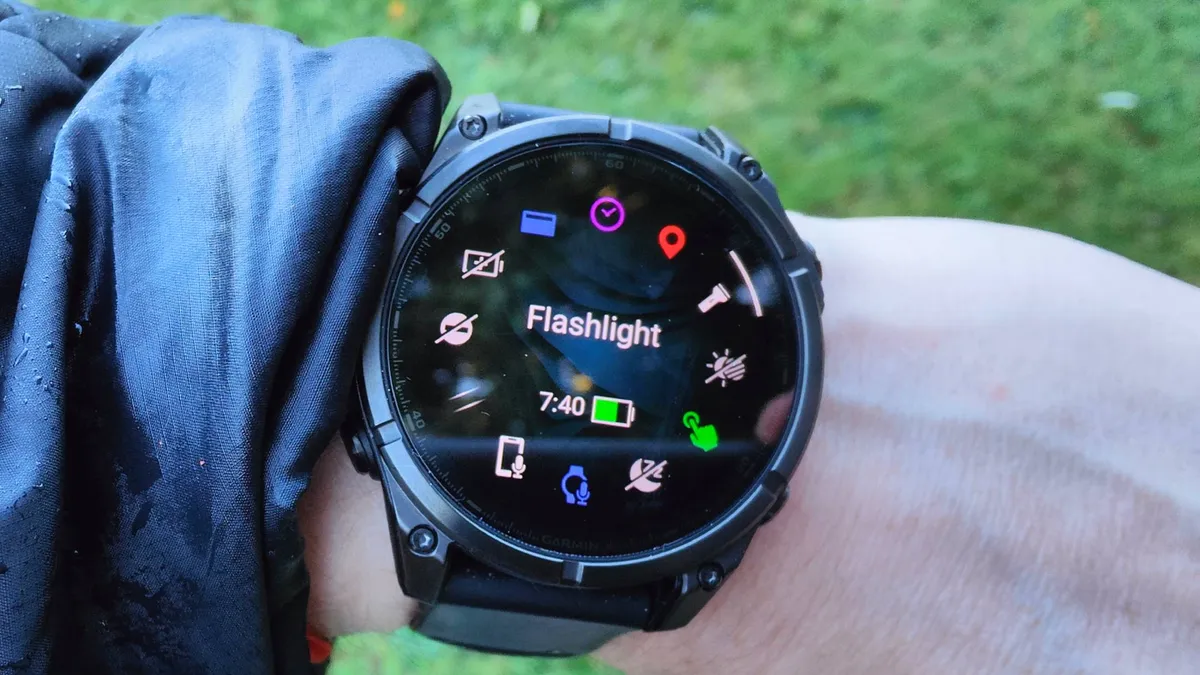
If you’ve got a watch with five buttons, such as the Garmin Fenix 8 or the Garmin Forerunner 570, you can set up a shortcut via hot keys.
In your settings, select System > Hot Keys, and choose the combination of buttons you want to use in order to instantly turn the Touch Lock setting on and off.

The best Garmin watches for all budgets
Follow TechRadar on Google News and add us as a preferred source to get our expert news, reviews, and opinion in your feeds. Make sure to click the Follow button!
And of course, you can also follow TechRadar on YouTube and TikTok for news, reviews, unboxings in video form, and get regular updates from us on WhatsApp too
https://cdn.mos.cms.futurecdn.net/SXSXzZiHih2LLFDntfX7jC-2061-80.jpg
Source link
matt.evans@futurenet.com (Matt Evans)




