
iOS is an extremely capable operating system – and perhaps even more so than you realize, because it’s packed full of hidden tools and features that are worth knowing about.
For whatever reason, Apple doesn’t do much to highlight these features, with them for the most part either being buried deep in submenus or requiring specific gestures on specific icons that you might not think to try.
So, since Apple hasn’t made these features obvious, we’ve done that job for them, highlighting seven of the best hidden iOS features below.
1. Fast timers

There are various ways to set a timer on iOS – or rather there are various ways to open the Clock app, which is the main avenue for timer setting. But there’s also a speedier approach that bypasses the Clock app altogether.
If you’ve got a timer option in Control Center, just long press that, and you can immediately set a timer without launching the app itself.
This approach has some limitations in that it only lets you set timers for certain intervals, so if you need something really specific like 27 minutes it won’t be much use – and even less so if there are seconds involved. But for the timer durations it can handle, this is the fastest method we’ve found.
2. Siri shorthand
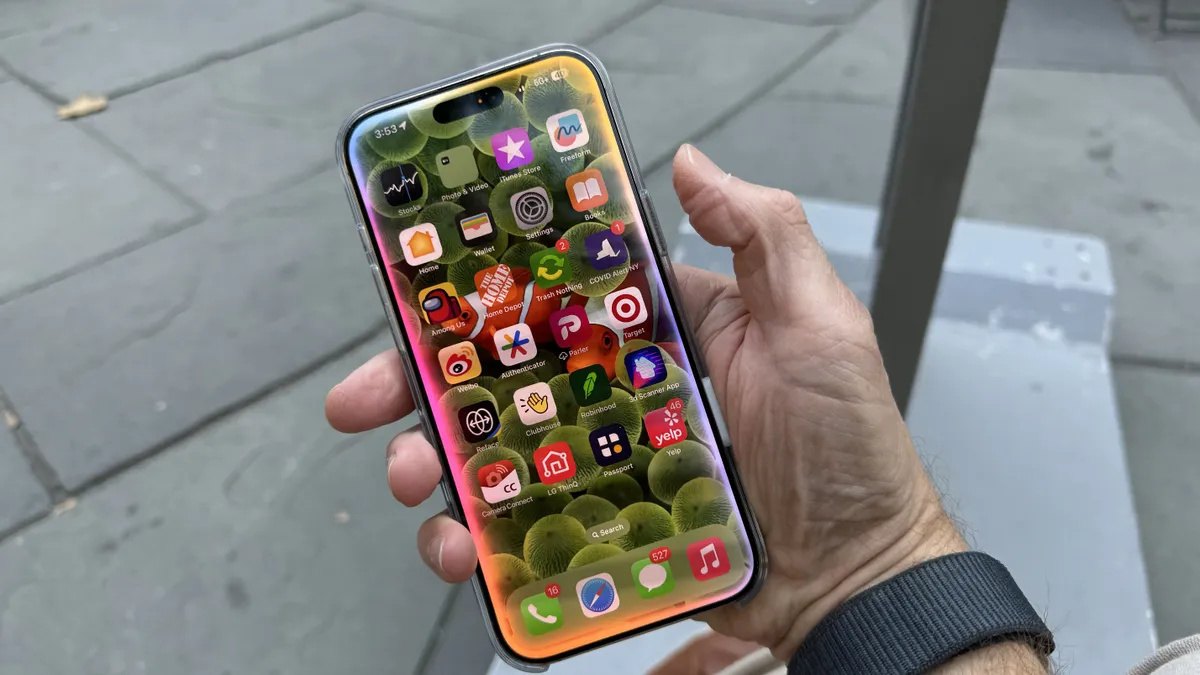
Siri isn’t a person, so there’s no need to speak to it in full sentences – it won’t be offended if you don’t and more importantly it will generally infer what you want.
Where this can come in most handy, is when you want to set an alarm or a timer. For an alarm, you can simply say a time, such as “2pm”, rather going to the effort of saying “set an alarm for 2pm”. And it’s the same deal with timers – just say the duration you want and Siri will figure out that you want to set a timer for that long.
3. Swipe between apps

If you want to switch between open apps, you’re probably swiping up from the bottom of the screen, then swiping through the app switcher and tapping on the app you want. But there’s a faster way to move between them.
Rather than swiping up on the bottom of the screen, just swipe left or right along the bottom edge, and your phone will move between apps that way. Generally you’ll want to start by swiping right, since the app you’re currently using will be the most recent one, so there will be nothing to see in the other direction.
4. Background Sounds

There are all sorts of apps you can download that contain relaxing sounds like the noise of rain or a fire. These can help drown out the sounds around you or simply soothe you, so you can focus on what you’re doing or just chill out or sleep.
But you don’t even need to download a third-party app to access these sounds, as many of them are built right into your iPhone.
Just head to Settings > Accessibility > Audio & Visual >Background Sounds. Then, toggle Background Sounds on, and select which sound you want to play. You can also adjust the volume of the sound if you want, and tweak other settings too, like whether the sounds will stop at a specific time, and whether they’ll still play while your phone is locked.
5. Know when your camera lens is dirty

It’s almost unavoidable that your camera lens will get dirty over time. After all, even if you’re careful, it’s likely to come in contact with fingers and surfaces.
But it can’t always be easy to tell whether it’s dirty just by looking at it – and that’s if you even think to check.
Thankfully, your phone can check for you. Just head to Settings > Camera, and then turn on the ‘Lens Cleaning Hints’ toggle. Then, you’ll get an alert when your phone detects that the lens should be cleaned in order to improve image quality.
6. Callback reminders

If you miss a call it might not be convenient for you to call back immediately, but you don’t have to manually write out a reminder to do so. Instead, you can set a reminder directly from the Calls screen of the phone app.
Just swipe right across the log of the call you missed (or of any other call for that matter), and tap the picture of a clock. Then, it will give you options to set a callback reminder for an hour’s time, for tonight, for tomorrow, or you can tap ‘Remind Me Later’ and set a reminder for any other time.
7. Lock and hide apps

You probably already have Face ID set up so no one but you can unlock your iPhone, but what about if you let someone else use the phone but don’t want them to access specific apps?
For that, you can just long press the app icon on the home screen, and then tap ‘Require Face ID’. Once done, the app will then require Face ID to open.
If you want to go a step further, then after initially tapping ‘Require Face ID’ there’s also a ‘Hide and Require Face ID’ option, which means that not only will it need Face ID to open, it also won’t be displayed on the home screen or in the App Library. Instead, you’ll only find it in the Hidden Apps folder and in your phone’s Settings menu.
Hiding the app like this means you won’t get notifications from it either, so it’s a drastic step, but it does ensure the app is truly hidden.
Follow TechRadar on Google News and add us as a preferred source to get our expert news, reviews, and opinion in your feeds. Make sure to click the Follow button!
And of course you can also follow TechRadar on TikTok for news, reviews, unboxings in video form, and get regular updates from us on WhatsApp too.
https://cdn.mos.cms.futurecdn.net/QX2TLtqxX5mP7Xw7RA4kAh-1920-80.jpg
Source link





