
- Windows 11’s August update is now rolling out
- It brings faster launch speeds to apps via functionality that was previously only available for certain Windows menus
- There’s also a smart feature for Voice Access that deals with background noise interference, and some tweaks for search in Windows 11
Windows 11‘s August update has arrived, and it’s mostly minor work, although there are a few notable moves with this new patch.
One important introduction is that Microsoft is extending a previously rolled-out feature — a secret sauce for faster launch times — to cover apps in Windows 11. That’s good news for the performance you’ll experience in the OS in general, and there are a couple of other nifty improvements besides.
Let’s take a look at those, and I’ll also round up some highlights of the rest of the work that’s present in Windows 11’s latest patch for those who are planning to grab it.
Latest Videos FromTechRadar
1. Faster app launches

One key move here is that apps are now going to launch faster in Windows 11, thanks to the extension of a previously rolled-out feature called Low Latency Profile (LLP).
Windows Latest flagged the deployment of this capability, which speeds up the launching of apps considerably. Note that LLP first debuted in June, but it only applied to certain parts of the Windows 11 interface (like the Start menu, for example, or Notification Center), and now it works for all your apps.
LLP nudges the processor when an app (or menu) is launched, asking for a brief speed boost so that the app in question will load a lot more quickly. If you have Task Manager open when you run an app, you’ll see that as you start it, the CPU will ramp up its speed for a second or two, before returning to normal once the program is running.
Bear in mind that this ability is on a controlled rollout, which is normal for this sort of feature, as Microsoft tests the waters to make sure it’s working as intended. This means you may have to wait a little while before getting it.
(While you can force the enablement of LLP with apps by using a bit of trickery via a Windows configuration tool, I wouldn’t recommend this approach, and I’d advise simply waiting for the rollout to happen naturally. There could be a good reason why your PC has been swerved for this particular feature).
2. Voice Access improved to filter out background noise

Windows 11’s built-in voice functionality (Voice Access) also gets a boost this month with a new feature called Voice Isolation. If this is switched on, it filters out any background noise, including other people speaking, so only your voice is picked up. Microsoft informs us (in the optional June update release notes, which was this patch in preview) that there’s a setup process required to recognize your voice, but you only have to do this once.
There’s another setting that just removes background noise (any non-speaking sounds), which doesn’t require any setup. For those who do want the full Voice Isolation experience, you’ll find the setup is accessed in Voice Access settings > Improve speech recognition.
3. Windows search improvements
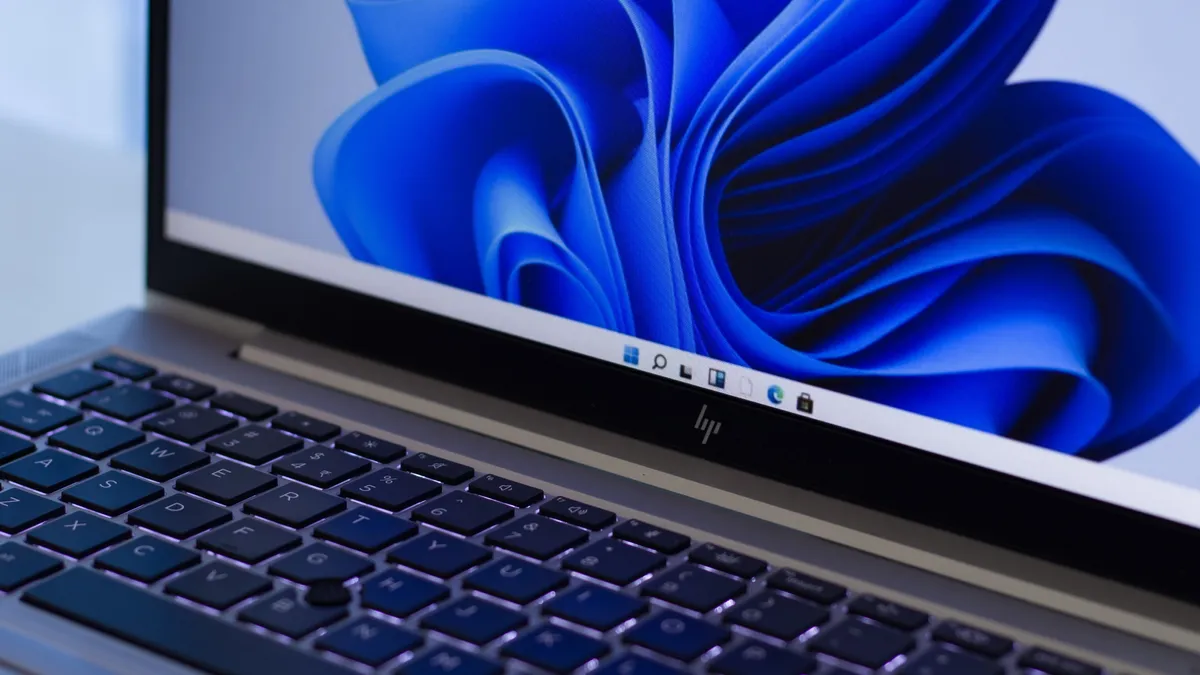
Microsoft keeps taking steps to make Windows 11 search more user-friendly, and there are a couple of worthwhile additions in this update. First off, we’re told that when searching for apps, Windows will handle typos better, so if you misspell the software you’re hunting for, it should still be found. Likewise, partial app names will produce a result.
Furthermore, when you’re searching for a Windows 11 setting, the more useful options should now appear higher in the returned search results. While these are more minor tweaks, Microsoft is clearly making strides towards search becoming a good deal better, and that includes some important streamlining work that’s inbound (including ditching web results).
What else is new?

Other changes delivered by the August update for Windows 11 include new gesture controls for precision touchpads, which include the ability to adjust the default speed for zoom and scroll gestures. In the latter case, you also get scrolling acceleration applied so the more you repeat the gesture, the faster the scrolling becomes, allowing you to zip through long documents or web pages.
A useful piece of functionality has returned for laptops, too, namely the ability to set a level for when Energy Saver should be turned on (in Settings > System > Power & Battery). This was previously removed as Microsoft wanted the energy-saving feature to manage itself, but users were confused as to where the option had gone, and still wanted a manual setting present — so it’s back (for now).
Widgets have also been tidied up so that the Lock screen only shows the weather by default (rather than multiple widgets), and notification badges in the taskbar use the Windows accent color rather than being red (making them less of a distraction).
There’s a whole raft of minor tweaks, including Windows Hello getting support for peripheral fingerprint sensors and the addition of a “parental controls notice” during Windows 11 setup that points out online safety features for families.
Follow TechRadar on Google News and add us as a preferred source to get our expert news, reviews, and opinion in your feeds.

The best laptops for all budgets
https://cdn.mos.cms.futurecdn.net/hi3sE3xZdA5gKLTMyCUDAE-1920-80.jpg
Source link